Types of data storage: what to use and where to get it
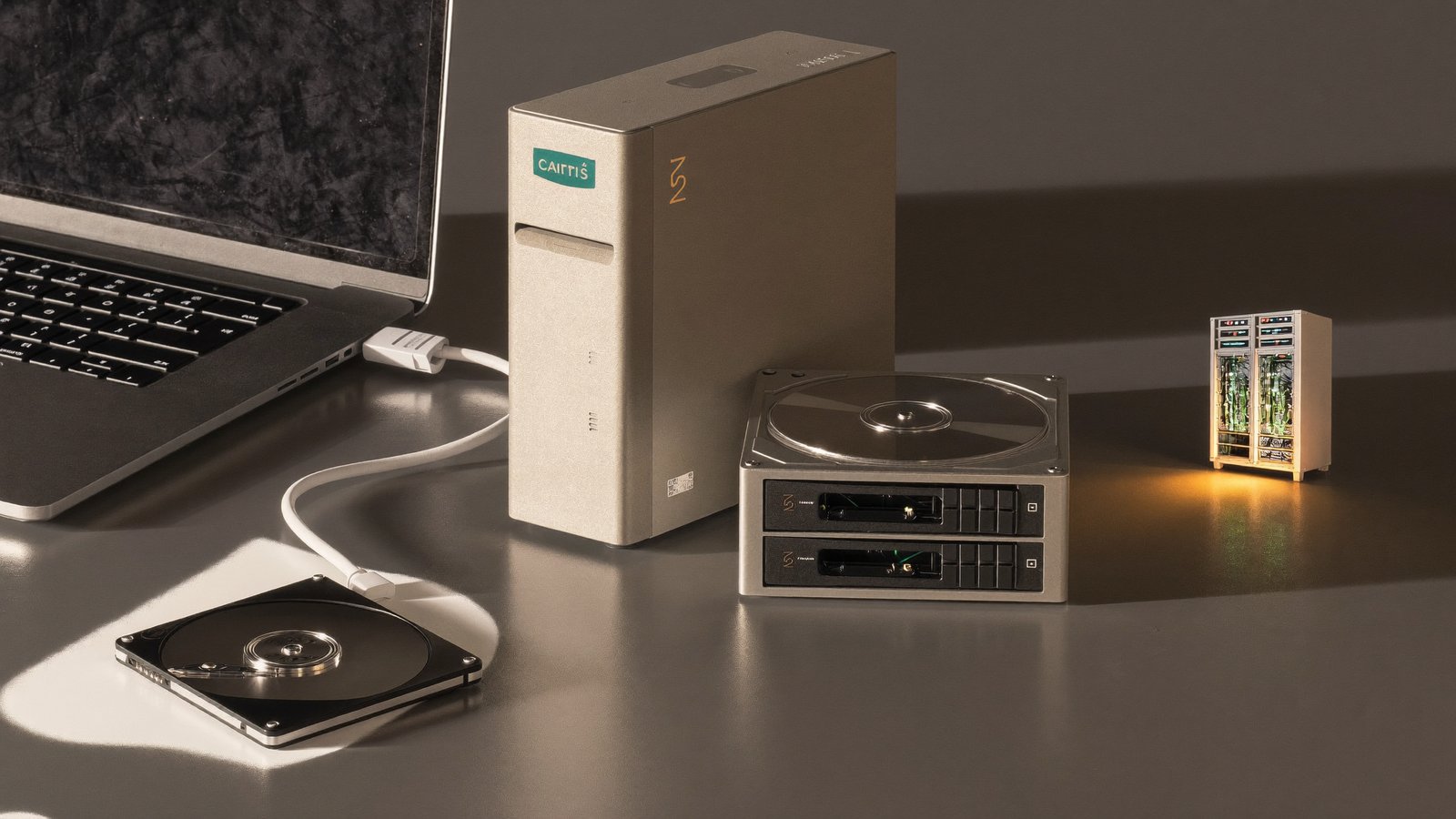
The best data storage is not one product. It is the right combination of fast working space, a second copy, and an off-site copy you can recover when something goes wrong.
Shopping for storage gets confusing because an SSD, a NAS, Google Drive, Backblaze, and Amazon S3 can all be described as “storage.” They are not interchangeable. One is built for speed, another for sharing, another for automatic backup, and another for archives that may sit untouched for years.
This guide explains the main types of data storage, what each is best used for, and the safest places to buy or subscribe to them. Prices vary by country and change often, so use the linked provider pages to check the current cost before buying.
The quick answer
| What you need | Best storage type | Good place to start |
|---|---|---|
| Fast everyday work | Internal SSD | Your computer maker or an authorized drive retailer |
| Portable project files | External SSD | Samsung, Crucial, Kingston, or Western Digital retailers |
| Low-cost bulk storage | External hard drive | Seagate or Western Digital direct and authorized retailers |
| Shared storage at home or work | NAS | Synology, QNAP, or an authorized integrator |
| Files synced across devices | Consumer cloud drive | Google One, iCloud+, OneDrive, or Dropbox |
| Automatic off-site computer backup | Cloud backup | Backblaze Personal Backup or a similar service |
| App data or flexible large archives | Object storage | Backblaze B2, Cloudflare R2, or Amazon S3 |
| Records rarely opened | Cold archive | Amazon S3 Glacier or an equivalent archive tier |
If the file matters, do not choose only one row. A working SSD plus an external hard-drive backup plus an off-site backup is a much safer system than any single device or subscription.
Internal SSD: best for speed and everyday work
A solid-state drive stores data on flash memory with no moving parts. It is the right place for your operating system, applications, current documents, Lightroom catalog, active video project, or anything that benefits from fast opening and saving.
Use it for: current work, software, games, photo editing, video editing, and frequently opened files.
Do not use it as: your only copy. An SSD can fail suddenly and completely without the mechanical warning signs a hard drive sometimes provides, making recovery difficult or impossible. A laptop can also be stolen, and accidental deletion can remove a file just as quickly as the drive can open it.
Where to buy: start with your computer manufacturer if the storage is soldered or the machine is under warranty. For an upgradeable computer, buy a compatible drive from the manufacturer’s store or an established authorized retailer. Check the physical size and interface—such as 2.5-inch SATA or M.2 NVMe—before ordering.
External SSD: best for portable, active projects
An external SSD gives you much of the speed of an internal SSD in a small portable enclosure. It is useful when a laptop is short on internal space or when a photographer or editor needs to move an active project between machines.
Use it for: travel, current media projects, fast transfers, portable game libraries, and a temporary working copy.
Watch for: cable and port speed, heat, drop protection, warranty, and whether the advertised performance requires USB 3.2 Gen 2x2 or Thunderbolt. A fast drive connected through a slow port will run at the slow port’s speed.
Where to buy: manufacturer-direct stores and authorized electronics or photography retailers are the safest choices. If you use a large marketplace, verify that the seller is the manufacturer or the retailer itself; counterfeit flash storage exists.
Hard drives: best value for large local backups
A hard disk drive uses spinning magnetic platters. It is slower and less resistant to drops than an SSD, but it usually gives you far more capacity for the money. That makes it well suited to large photo libraries, video masters, computer backups, and files that do not need SSD speed.
Use it for: bulk storage, local backups, media archives, and secondary copies.
Choose the right kind: a portable bus-powered drive is convenient; a desktop drive is better when capacity matters more than portability; and a NAS-rated drive is designed for multi-drive, always-on enclosures. Do not move a hard drive while it is operating.
Where to buy: Seagate and Western Digital sell directly in many regions, and both list authorized partners. Photography retailers and established computer stores are also good choices. Keep the receipt and register the warranty.
NAS: best for shared storage you control
Network-attached storage is a small server connected to your home or office network. It can hold one or more hard drives and make files available to several computers, phones, TVs, or users. A NAS can also run automatic computer backups, photo libraries, media services, and remote access.
Use it for: a shared household library, a small studio, multiple computers, surveillance footage, or a private “personal cloud.”
Understand the trade-off: you pay more up front and become responsible for updates, drive replacement, security, and an off-site backup. RAID can keep a NAS running after a drive failure, but RAID is not backup: it does not protect you from deletion, theft, fire, malware, or a damaged enclosure.
Where to buy: use the official Synology NAS guide, QNAP’s product selector, or a local authorized integrator. Buy NAS-rated drives listed as compatible with the enclosure.
Cloud drives: best for sync, sharing, and convenience
Google Drive, iCloud Drive, OneDrive, and Dropbox are cloud file-sync services. They keep a folder or photo library available across devices and make sharing easy. They are usually the simplest answer for documents, phone photos, family folders, and collaboration.
Use them for: access from anywhere, sharing links, collaboration, phone photo sync, and keeping current files consistent across devices.
Do not confuse sync with backup: if a deletion or corrupted file synchronizes to every device, your copies may disappear together. Version history and trash help, but retention limits still apply.
Where to subscribe: buy directly from the provider. Google One is convenient for Google Photos, Drive, and Gmail; iCloud+ fits Apple-heavy households; OneDrive is strong when Microsoft 365 is already useful; and Dropbox remains a straightforward cross-platform sync choice. Avoid “lifetime” accounts sold by unknown third parties.
Cloud backup: best for automatic off-site protection
A dedicated cloud-backup service is designed to recover a computer after drive failure, theft, ransomware, or another disaster. Unlike a sync drive, it normally runs quietly in the background, keeps versions, and is organized around restoring data rather than collaborating on it.
Use it for: automatic off-site backup of a Mac or Windows PC and attached external drives.
Where to subscribe: buy directly from a backup provider. For example, Backblaze Personal Backup currently offers unlimited backup per computer and covers attached external drives. Check version-history rules, restore methods, encryption options, operating-system support, whether disconnected external drives must be reattached periodically, and your initial upload time and home internet limits. Uploading several terabytes can take weeks on a typical connection and may trigger data caps.
Object storage: best for technical users and scalable archives
Object storage keeps files in buckets and is usually accessed through an app, backup tool, command-line utility, or S3-compatible interface rather than a normal desktop folder. It scales easily and can be cost-effective, but billing may include storage, requests, retrieval, and data transfer.
Use it for: server backups, application assets, large media archives, backup software targets, and storage that needs an API.
Where to subscribe: Backblaze B2 is simple, always-hot object storage; Cloudflare R2 is useful when egress charges are a concern; and Amazon S3 offers the widest range of storage classes and ecosystem integrations. Object storage is powerful, but it is not the easiest first choice for a non-technical family.
Cold archive: best for data you may not open for years
Cold storage reduces monthly cost by making retrieval slower or more expensive. It is meant for finished projects, compliance records, old raw footage, and disaster-recovery copies that are important but rarely opened.
Use it for: long-term preservation after you have tested the upload and documented how to restore it.
Where to subscribe: Amazon’s S3 storage-class guide explains Glacier Instant Retrieval, Flexible Retrieval, and Deep Archive.
Read the minimum-storage-duration and recovery charges carefully. As a useful illustration, AWS advertises Deep Archive storage at about $1 per terabyte each month. Recovering that same terabyte can cost tens of dollars—or more—once retrieval processing, temporary restored storage, requests, and internet transfer are included. The final price depends on the region, retrieval speed, file count, and destination, so calculate the cost of a complete emergency recovery before committing an archive.
What about USB sticks, memory cards, and optical discs?
USB flash drives and SD cards are excellent for transferring files and capturing photos or video. They are poor choices for the only long-term copy: they are easy to lose, quality varies, and small devices are often left unverified for years.
Optical media can provide an offline copy that is resistant to ransomware, but capacity is limited and future access depends on keeping a compatible drive. It makes sense for a small set of irreplaceable documents or photos, not as the default home for a multi-terabyte library.
The storage plan that works for most people
The safest general plan is the 3-2-1 backup rule described by CISA: keep three copies of important data, on two different types of media, with one copy off-site.
For a typical person or family, that might look like this:
- Working copy: internal SSD or NAS for the files you use.
- Local backup: external hard drive with automatic backup software.
- Off-site backup: dedicated cloud backup or properly configured object storage.
For a photographer or video creator, add a fast external SSD for current projects and keep completed work on high-capacity hard drives or NAS. For a small team, use a NAS or cloud drive for shared work, then back it up separately. For an archive measured in tens of terabytes, compare object-storage and cold-tier retrieval costs before uploading.
How Whimsy fits when storage is spread everywhere
Choosing storage is only half the problem. Over time, files still spread across computers, external drives, NAS folders, and several cloud accounts. Moving everything into one provider can be expensive and creates a new dependency.
Whimsy is a search and organization layer across the storage you already have—it does not take custody of your files or ask you to migrate everything into a new provider, so your work stays yours regardless of which storage options above you use.
It can help you understand what lives where, find duplicate files, and work across local and cloud sources without pretending that one storage type should replace all the others. The related guide to searching disconnected drives and fragmented archives explains that approach in more detail.
FAQ
What is the best type of storage for photos?
Use an SSD for active editing, a hard drive or NAS for the main library, and a separate off-site backup. A cloud photo service is useful for phone sync and sharing, but it should not be the only copy of irreplaceable originals.
Is an SSD better than a hard drive?
An SSD is better for speed, silence, portability, and shock resistance. A hard drive is usually better for inexpensive high capacity. Many good storage plans use both.
Is a NAS better than cloud storage?
A NAS gives you local speed, capacity, and control. Cloud storage gives you easier remote access and less hardware maintenance. A NAS still needs an off-site backup, so the strongest setup often uses both.
Is Google Drive or iCloud a backup?
They primarily synchronize and share files. Trash and version history offer some protection, but a dedicated backup keeps an independent recovery copy and is safer for files you cannot replace.
Where is the safest place to buy storage?
Buy hardware from the manufacturer, an authorized retailer, or an established computer or photography store. Subscribe to cloud services directly from the provider. Avoid unusually cheap flash storage and third-party cloud accounts.
What if my files are already spread across multiple types of storage?
This is common after following the 3-2-1 rule for several years. You may have an internal SSD, old external drives, a NAS, and one or two cloud accounts. A search and organization layer—not another storage provider—can help you see what exists where without taking custody of your files or forcing you to migrate everything into one place.
The takeaway
Choose storage by job. Use SSDs for speed, hard drives for affordable capacity, NAS for shared local access, cloud drives for sync, cloud backup for recovery, and object or cold storage for large technical archives.
Then combine them. The best storage product can still fail; a tested 3-2-1 system is what turns storage into protection.
Comments (0)
The views in comments are those of the author and do not necessarily reflect the views of NumeraCode. We reserve the right to remove inappropriate content.