How to reduce storage costs without risking your files
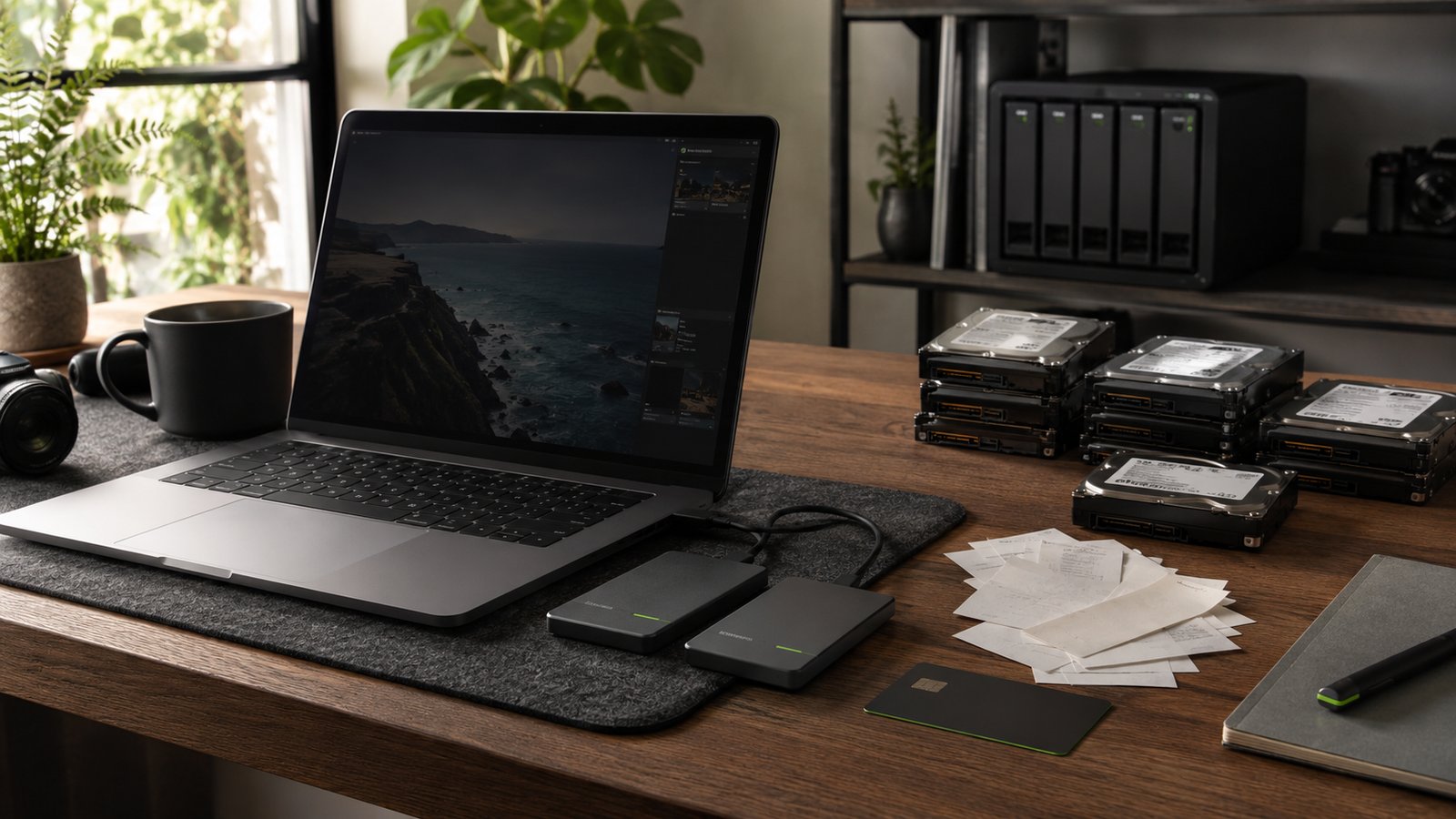
The expensive part of storage is not always the files you need. It is the duplicates you cannot see, premium space used for inactive work, and subscriptions that overlap without forming a reliable backup.
Storage costs rarely arrive as one alarming bill. They accumulate quietly: a larger laptop, two external drives, a cloud upgrade, another cloud for sharing, and a NAS because the drives became difficult to manage. Every purchase made sense on its own. Together, they become a recurring storage stack nobody planned.
The solution is not to buy the cheapest drive or delete files until a warning disappears. It is to understand what you have, remove genuine waste, place each file on storage suited to how often you need it, and preserve the independent copies that make recovery possible.
Start with an inventory, not another drive
When storage fills up, buying more capacity feels productive. It is also the fastest way to carry the same disorder into a larger container.
Before spending anything, list every place your files live: internal drives, external SSDs and hard drives, old computers, NAS volumes, synced folders, consumer clouds, backup services, and object-storage buckets. For each location, record its total capacity, used capacity, monthly or annual cost, renewal date, purpose, and whether it contains an original, a working copy, or a backup.
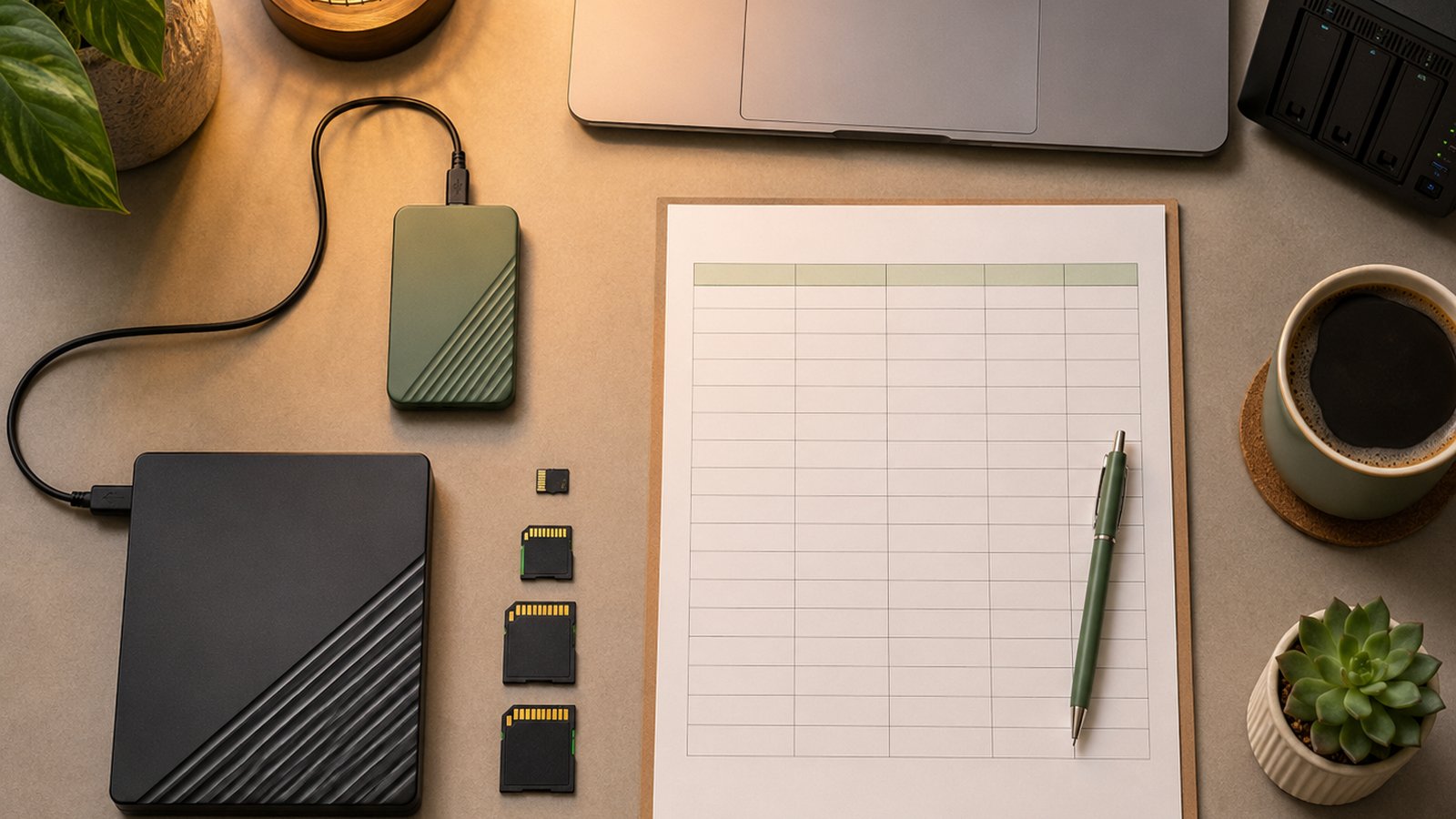
The goal is not perfect accounting. It is to answer three questions: What am I paying for? Which files exist in more than one place? Which copies are intentional protection rather than accidental repetition?
A useful audit separates storage into four jobs:
- Active work: files you open and change regularly.
- Shared access: files other people or devices need.
- Backup: independent recovery copies.
- Archive: important files you rarely expect to open.
If one subscription or drive has no clear job, it is a candidate for consolidation—but only after its contents are understood.
Delete waste, not protection
Duplicate files are one of the clearest opportunities to save money, but not every repeated file is waste. A photograph on your working SSD, local backup drive, and off-site backup should exist three times. Those copies protect one another.
The waste is unplanned duplication: the same export copied into three delivery folders, an abandoned cloud migration that left both sides active, repeated phone uploads, old caches, downloaded installers, temporary renders, and folders renamed instead of moved.
Review duplicates by content, location, and purpose. Keep independent backups on different media. Remove repeated copies inside the same protection layer only after verifying that the surviving file opens correctly and is included in a tested backup.
The savings can be concrete. At current list prices, removing one terabyte of genuine duplicate data could avoid roughly $6.95 per month on Backblaze B2 or $15 per month on Cloudflare R2 Standard. The same cleanup might prevent an upgrade to the next consumer-cloud tier. These are illustrations, not guarantees; provider pricing changes and your billing region matters.
Reserve premium storage for active work
Fast storage earns its price when speed changes the experience. Current projects, application libraries, databases, Lightroom catalogs, and video timelines belong on SSDs. Finished projects that may sit untouched for a year usually do not.
Hard drives still provide high capacity at a lower purchase price than SSDs. A NAS can make that capacity available across a household or studio. Object storage can provide an off-site destination without forcing every byte into an expensive synchronized folder.
Think in temperature rather than brand names:
- Hot: current work that needs immediate access and strong performance.
- Warm: completed work opened occasionally and expected within seconds.
- Cold: archives retained for recovery, compliance, or long-term preservation.
Moving files to a cheaper tier only saves money if the access pattern matches. Cloudflare R2 Infrequent Access currently costs less per stored gigabyte than R2 Standard, but adds retrieval charges and a 30-day minimum. AWS advertises S3 Glacier Deep Archive at about $1 per terabyte-month, but it is designed for data accessed less than once per year and recovered asynchronously.
Consolidate subscriptions carefully
Many people pay twice for storage because storage is bundled with something else. Microsoft 365 Personal currently includes 1 TB of OneDrive. Google One storage covers Drive, Photos, and Gmail and can be shared with a family group on eligible plans. iCloud+ also supports family sharing. Before adding another subscription, check what your existing software, phone plan, employer, school, or family bundle already includes.
Annual billing can reduce predictable costs. Google says annual Google One plans can save up to 16%. Microsoft currently lists Microsoft 365 Personal at $9.99 monthly or $99.99 annually, a difference of about $20 across twelve months. Backblaze Personal Backup similarly lists monthly, annual, and two-year options.
Commit only after the service has survived a restore test. A discount on a service that cannot restore your files is not a saving.
Price the exit before choosing the entrance
A low storage rate is only one line of the bill. Object and archive storage may also charge for requests, retrieval processing, minimum storage duration, temporary restored copies, and internet transfer.
Before moving an archive, calculate one realistic emergency: “What would it cost, and how long would it take, to recover all five terabytes to my computer?” Include your home internet speed and data cap. A multi-terabyte upload or restore can take weeks on an ordinary connection even when the provider-side fee looks small.
Cloudflare R2 currently charges no direct egress but meters storage and operations, with retrieval fees on its Infrequent Access tier. Backblaze B2 currently includes free egress up to three times average monthly storage, then charges beyond that allowance. AWS archive tiers can be cheaper to hold but slower and more complex to restore. The best price depends on how often data changes, how often it is read, and how urgently it must return.
Do not save by destroying the backup plan
The most expensive storage mistake is deleting the copy you eventually need.
CISA’s 3-2-1 guideline is a useful boundary: keep three copies of important data, on two different media types, with one copy off-site. Sync folders, RAID, and several folders on the same drive do not satisfy that rule by themselves.
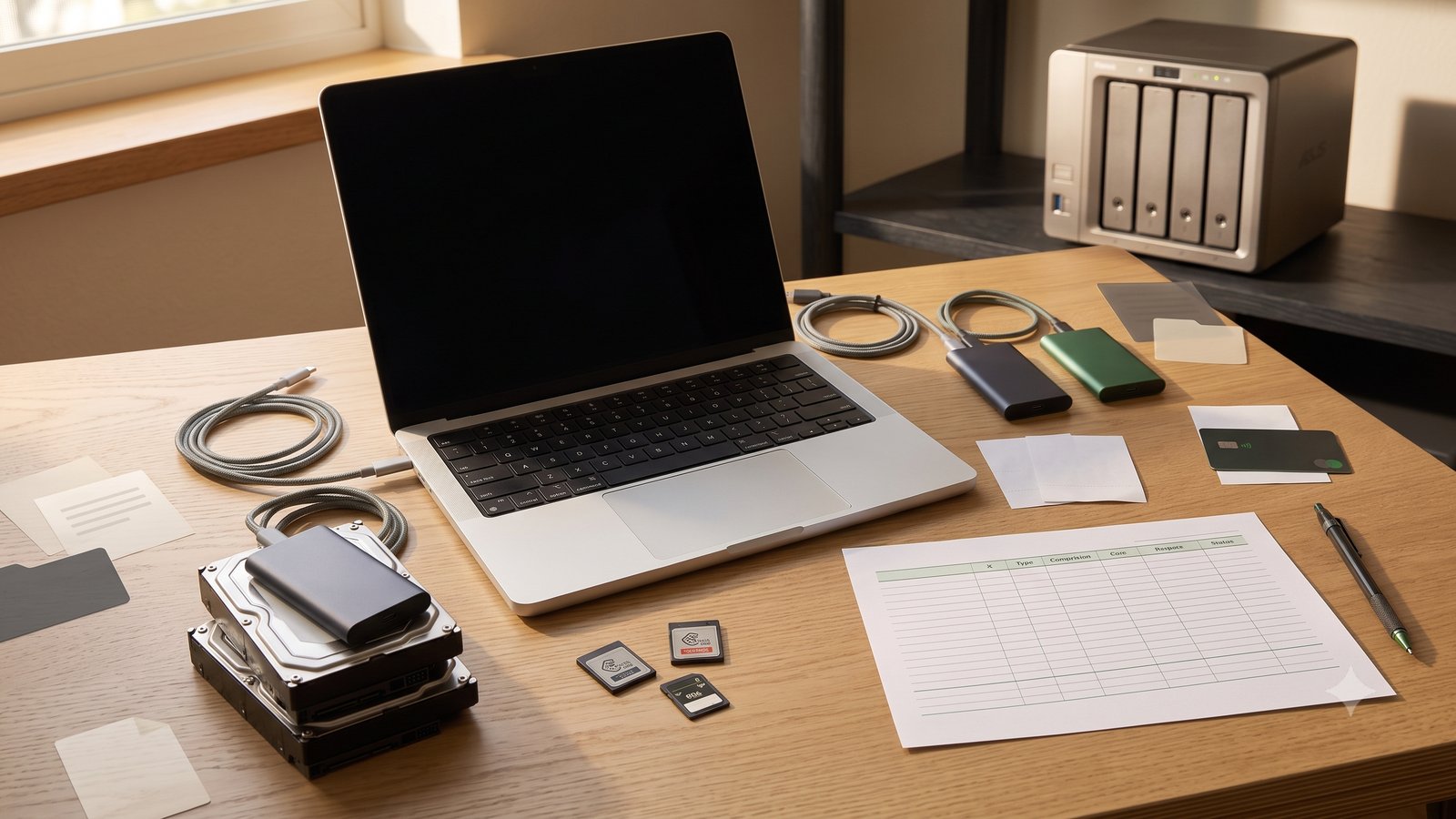
You can still optimize within the rule. The working copy can remain fast. The local backup can use inexpensive high-capacity storage. The off-site copy can use a dedicated backup service or appropriately chosen object-storage tier. What matters is that a deletion, hardware failure, theft, or ransomware event cannot remove every copy at once.
Test restoration before canceling an old service or erasing a drive. Open several files, restore a folder with nested directories, and confirm that dates, names, and permissions survive. Recovery is the product you are buying; storage is only the mechanism.
A 30-day storage-cost reset
Week one: inventory. Record every storage location, bill, renewal, and purpose. Do not delete anything yet.
Week two: review duplicates. Separate accidental repetitions from deliberate backup copies. Remove reproducible caches and temporary files first.
Week three: match storage to access. Keep active projects on fast storage. Move completed work to appropriate capacity or archive tiers after checking recovery costs.
Week four: consolidate and test. Cancel only clearly redundant subscriptions, switch predictable services to annual billing where worthwhile, and perform a real restore before erasing the old copy.
Repeat the audit every six or twelve months. Storage systems drift because projects end, devices change, and promotions expire.
How Whimsy helps reduce storage costs
The first step in storage-cost optimization is visibility. If your files are scattered across computers, external drives, a NAS, and several cloud accounts, it is difficult to know whether you need more capacity or simply need to understand what already exists.
Whimsy is a search and organization layer across the storage you already have. It does not take custody of your files or require you to migrate everything into another paid silo. Your work stays yours.
By showing where files live and surfacing duplicate candidates across storage locations, Whimsy can help you find avoidable copies before you buy another drive or upgrade another plan. It complements the process in our guide to choosing the right type of storage and the deeper explanation of finding duplicates across clouds and offline drives.
FAQ
What is the cheapest way to store large files?
For active local files, high-capacity hard drives usually cost less per terabyte than SSDs. For off-site archives, object or cold storage may cost less than consumer sync services, but retrieval fees, minimum durations, and restore time must be included.
Should I use an SSD or hard drive to save money?
Use SSD capacity where speed matters and hard-drive capacity for large local backups or inactive archives. Buying only SSDs for files rarely opened usually pays a performance premium you do not use.
Is annual cloud-storage billing worth it?
It can be when your capacity need is stable and you have tested the service. Compare twelve monthly payments with the annual price, but do not commit merely because the discount creates urgency.
Can I delete duplicate files if they are part of a backup?
Do not delete independent backup copies simply because their contents match the original. Remove accidental repetitions within the same layer while preserving separate working, local-backup, and off-site copies.
When is cold storage actually cheaper?
Cold storage is cheapest when files remain untouched for long periods and recovery can wait. If files are retrieved regularly, retrieval charges and minimum durations can erase the storage-rate savings.
How can I reduce storage costs across several providers?
Inventory every location and bill, identify genuine duplicates, assign each provider a clear job, move inactive files to suitable tiers, consolidate overlapping subscriptions, and test recovery before deleting or canceling anything.
How does Whimsy help reduce storage costs?
Whimsy helps you see and organize files across the storage you already own, including computers, drives, NAS, and supported clouds. That visibility can reveal duplicate candidates and unnecessary capacity without moving your files into Whimsy-owned storage.
The takeaway
Reduce storage costs in the right order: understand, verify, then remove. Inventory what exists, keep deliberate recovery copies, eliminate accidental duplication, reserve premium storage for active work, and calculate the full cost of restoration before choosing a cheaper tier.
Before buying another drive or upgrading another subscription, map the storage you already have. The cheapest terabyte is often the one you discover you were already paying for twice.
Comments (0)
The views in comments are those of the author and do not necessarily reflect the views of NumeraCode. We reserve the right to remove inappropriate content.