How to organize family photos across iPhone and Android
Heather
Marketing
Rahul Shoy
Founder
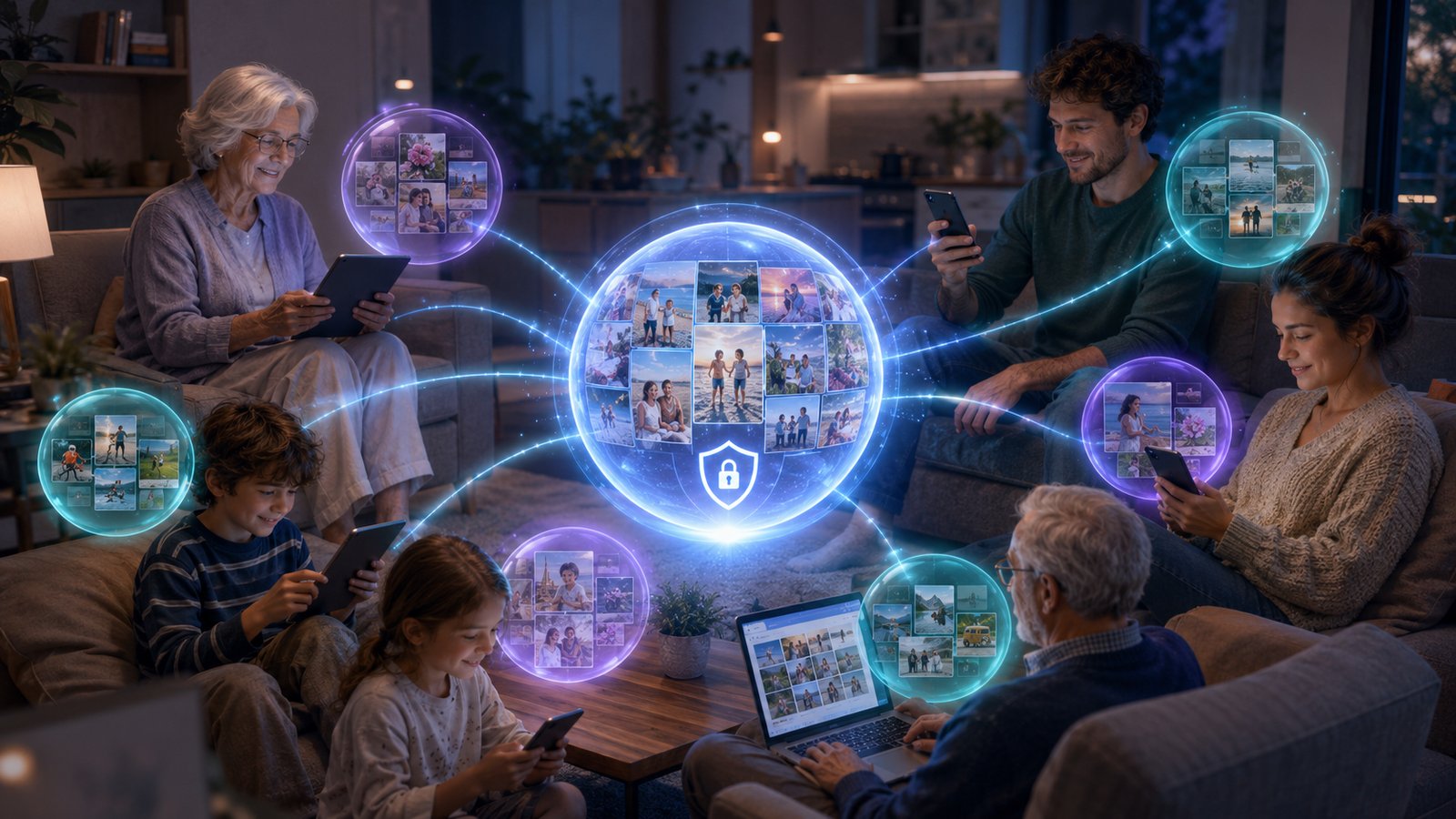
To organize family photos across iPhone and Android, keep personal photo libraries private by default, create one shared family photo sink for the pictures everyone should see, and separate that shared archive from your real backups.
The goal is not to force the whole household into one Apple account, one Google account, or one cloud subscription. The better pattern is simple: each person keeps their own library, and the family creates one shared destination for birthdays, trips, school events, scanned prints, and the photos everyone wants to keep.
In a setup like Whimsy, iCloud Drive and Google Drive for desktop come through one local connector machine you control. Hosted web connections are currently the clean path for Dropbox, OneDrive, and bring-your-own cloud storage such as Amazon S3 or Cloudflare R2.
The problem: family photos live across mixed identities
Most households do not use one device ecosystem. One person may use an iPhone. Another may use a Samsung phone. Kids may use their own devices. Laptops may be a mix of Mac, Windows, Chromebook, or Linux. Over time, the family photo archive gets split across Apple Photos, Google Photos, iCloud Drive, Google Drive, Dropbox, OneDrive, external drives, old phones, and laptops.
The problem is not just storage. It is identity. Apple, Google, Microsoft, and Dropbox accounts are personal by design. That works well for individual privacy, but it becomes messy when a family wants one shared archive without giving everyone access to everyone else’s private files.
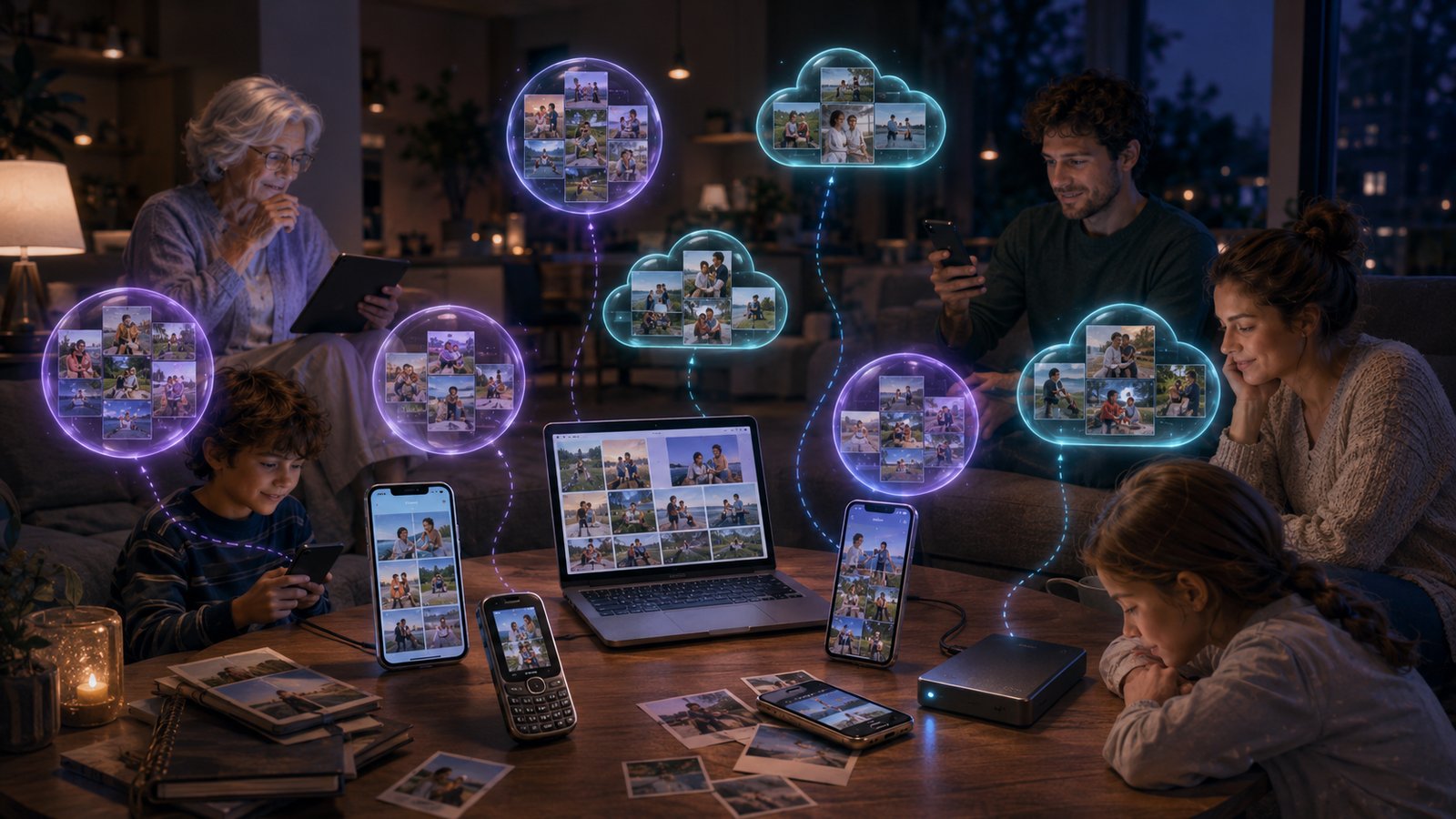
A family photo system needs to respect both realities: people have their own private libraries, and some photos belong to the whole family. The mistake is trying to solve both with one giant shared account.
Stop trying to merge identities
Most households get stuck because the obvious options are both flawed.
One giant shared Apple or Google account is convenient at first, but it turns a family archive into one identity, one login, and one failure point. It also creates privacy problems. Everyone’s personal photos, downloads, screenshots, and random files can start blending into one shared mess.
Separate paid clouds feel safer, but they create the opposite problem. Each person keeps their own archive, but the family still has no clean shared view. Photos stay scattered across different accounts, and nobody knows which copy is the family copy.
The goal is not to merge identities. The goal is to share only the photos that should be shared, while leaving each person’s own library alone.
Use a family photo sink, not a family takeover
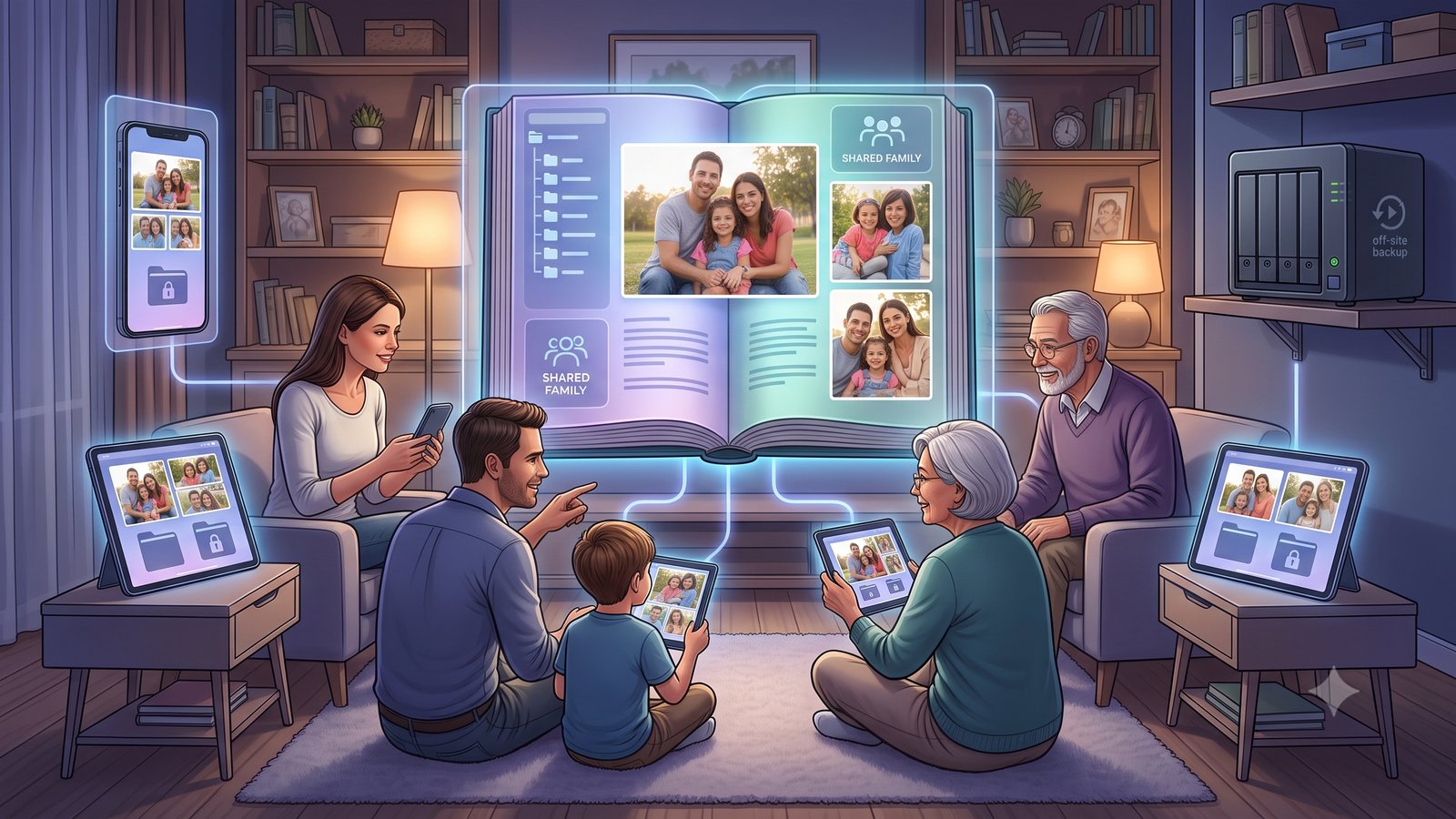
The better pattern is a shared family photo sink. A family photo sink is one central drop zone for the photos everyone should be able to see. It can hold birthdays, vacations, school events, old scanned prints, family videos, and the pictures grandparents keep asking for.
That shared sink could be a large shared drive, a shared Dropbox folder, a shared OneDrive folder, a NAS folder at home, or a bring-your-own cloud bucket such as Amazon S3 or Cloudflare R2.
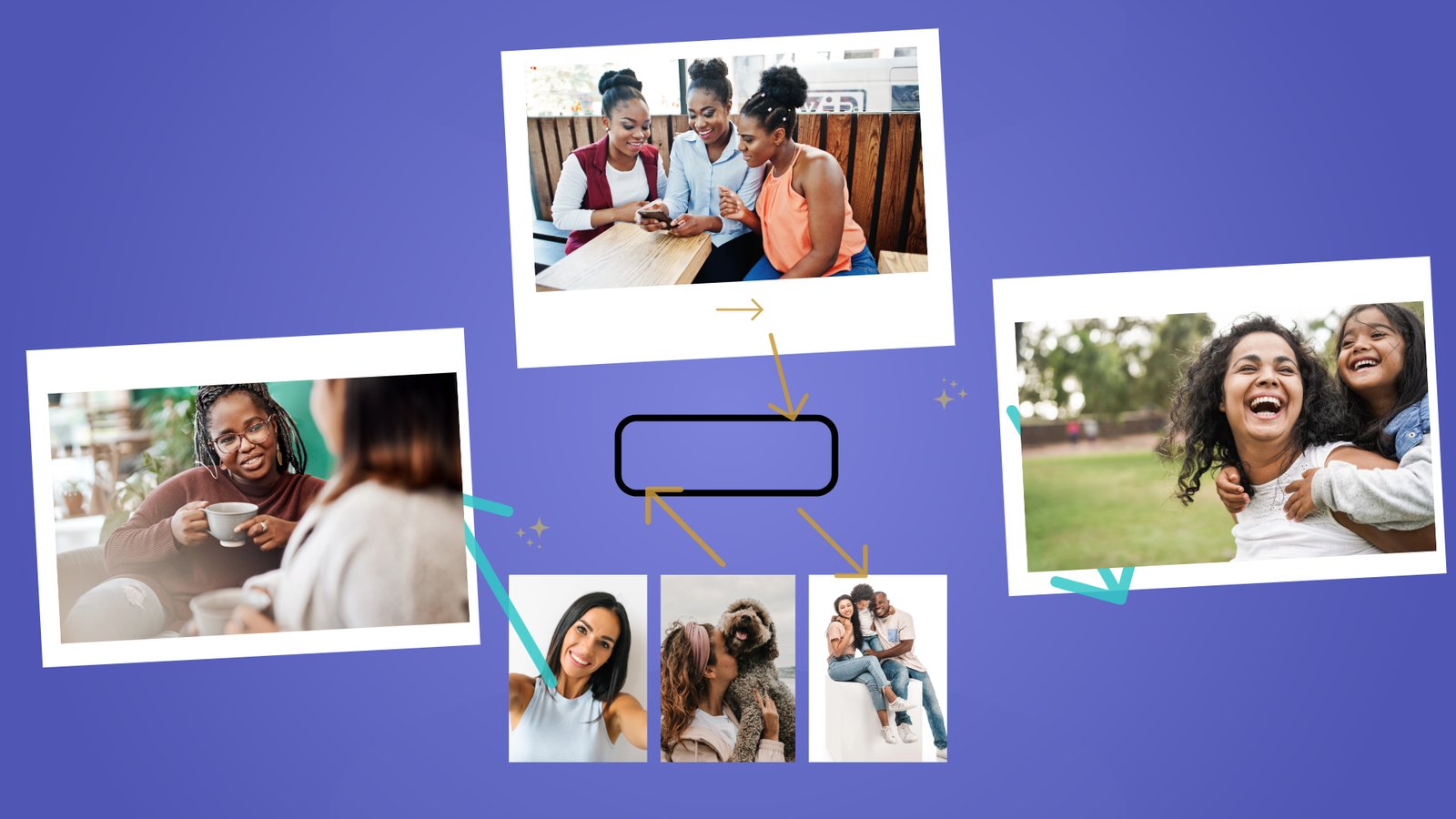
The important distinction is this: the sink is shared; personal libraries are not. Each person’s own phone, laptop, cloud drive, and folders stay private by default. Family photos flow into the shared archive only when someone chooses to add them. That makes the family archive intentional instead of accidental.
Why Whimsy helps
Whimsy gives this split a proper surface. Instead of forcing every family member into the same cloud account, Whimsy is designed around connections that start private by default and only become shared when you invite people.
A parent can contribute photos to a shared family archive without exposing every personal folder. Another family member can browse the shared library without inheriting the original storage credentials. The family gets one usable archive, but each person’s storage remains their own.
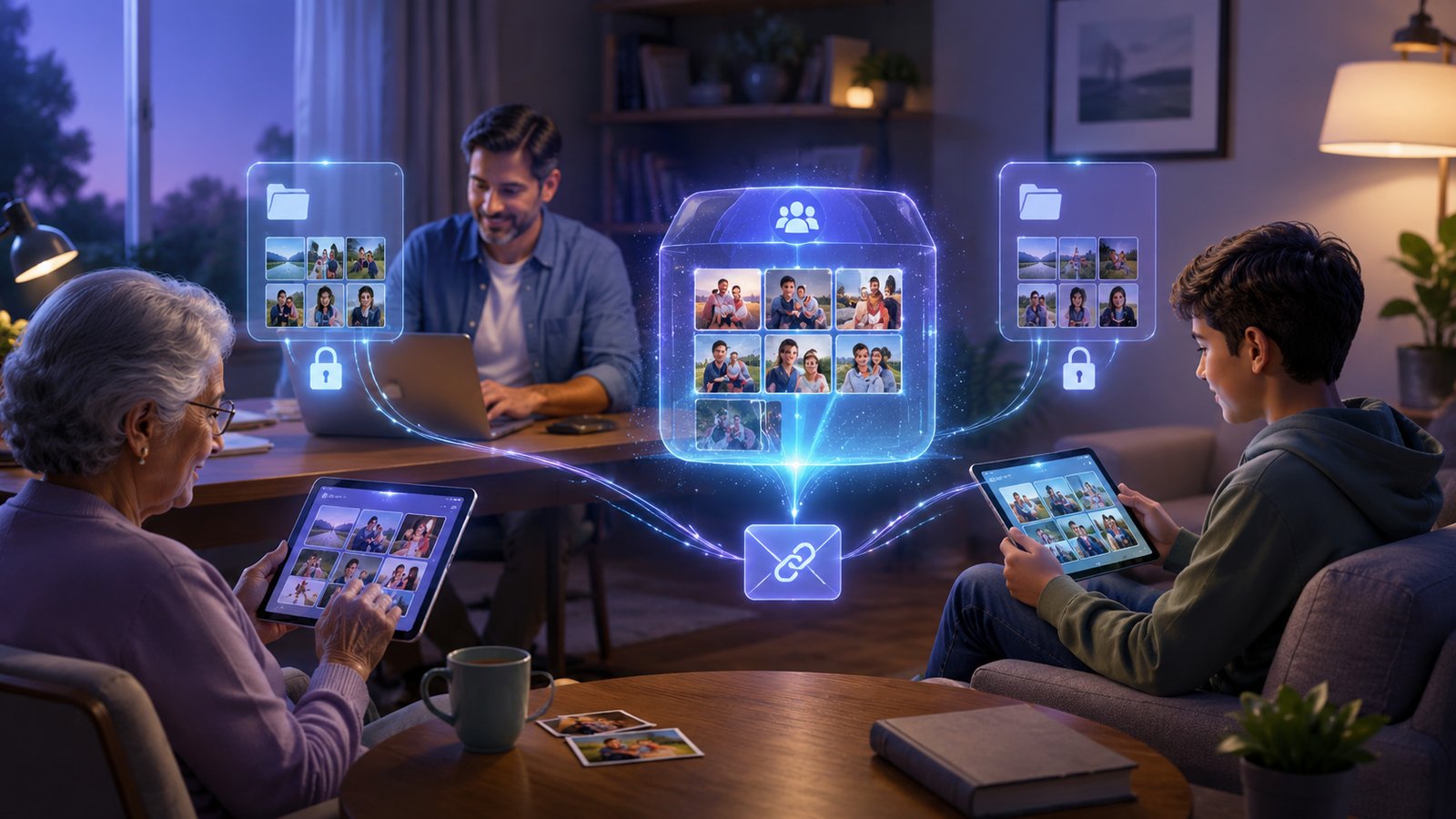
That is the practical value of local-first family sharing: one household photo archive the invited family members can use together, without turning everyone’s private storage into one shared login.
How the privacy-first setup works
The cleanest setup is one always-on home PC or Mac running the Whimsy local connector. That machine can see the storage you control directly, including external hard drives, local folders, synced desktop folders, NAS volumes, iCloud Drive folders synced to the computer, and Google Drive for desktop folders synced to the computer.
This keeps sensitive files and credentials on the machine you control. Whimsy can then provide a browsing, search, and organization layer without requiring every private library to be uploaded into one new cloud first.
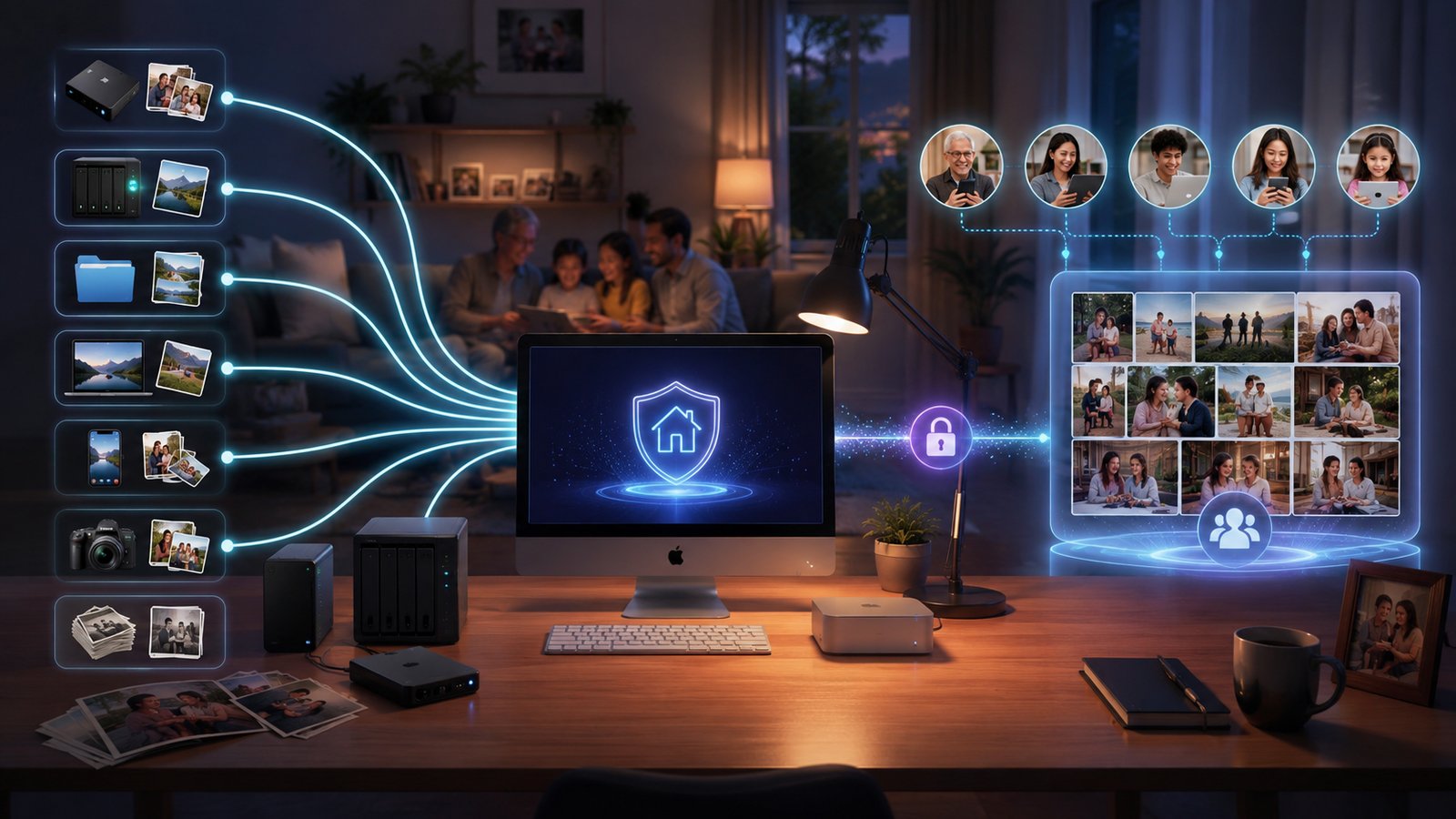
For a family that wants one shared archive without handing every personal account to a hosted service, the rule is simple: organize through the machine you control, not through one giant shared login.
Be clear about what runs where today
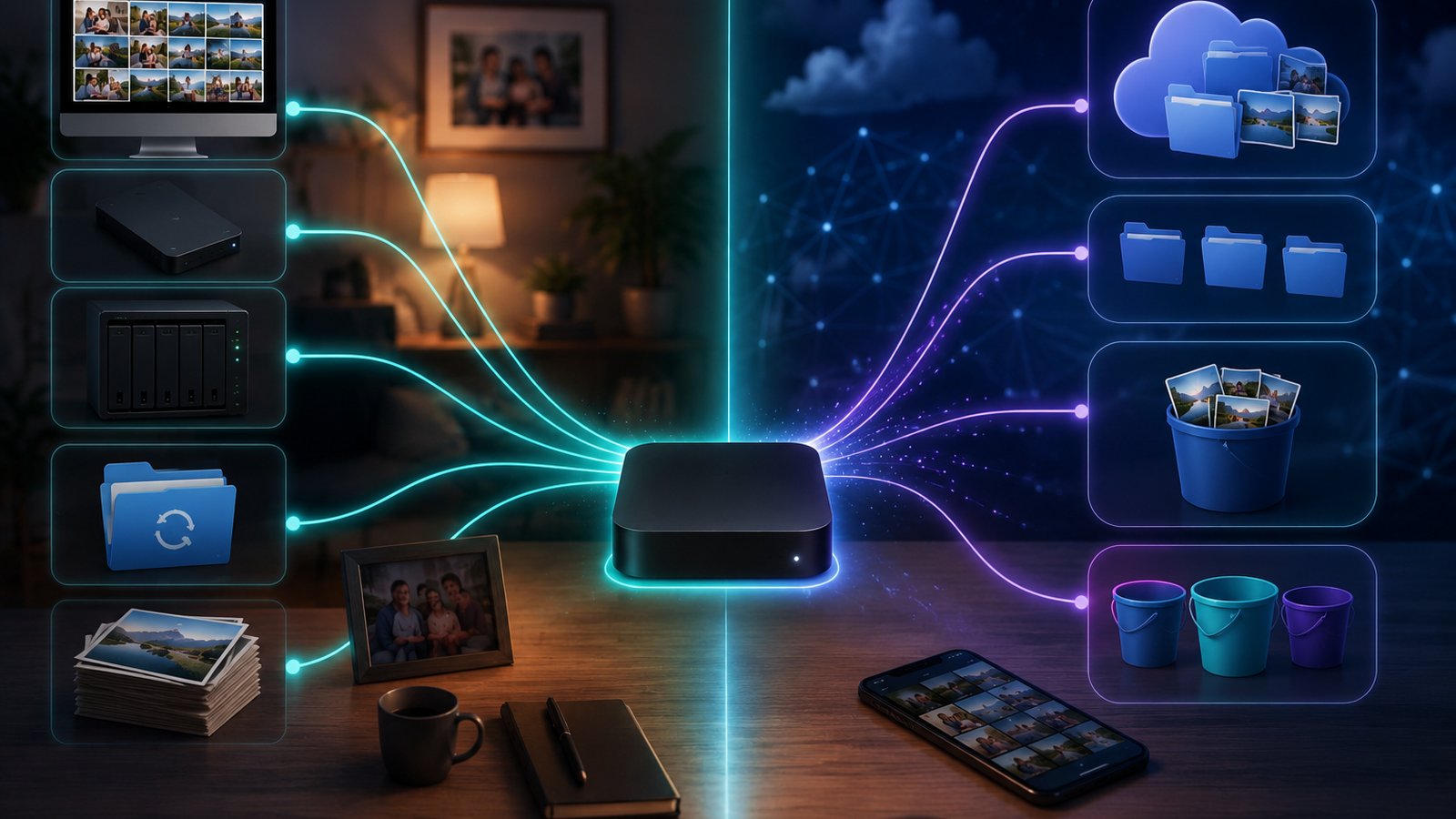
Provider support is not all the same, so it is better to explain the setup clearly. In Whimsy today, iCloud Drive and Google Drive for desktop come through the local connector path. That means they appear to Whimsy through the folders already synced to your home computer.
Hosted web connections are currently the clean path for Dropbox, OneDrive, and bring-your-own cloud storage such as Amazon S3 or Cloudflare R2.
| Storage source | Best Whimsy path today |
|---|---|
| iCloud Drive | Local connector machine |
| Google Drive for desktop | Local connector machine |
| External drives | Local connector machine |
| NAS folders | Local connector machine |
| Dropbox | Hosted web connection |
| OneDrive | Hosted web connection |
| Amazon S3 | Hosted web connection |
| Cloudflare R2 | Hosted web connection |
This is especially important for mixed iPhone and Android families. Android users should not expect the whole setup to depend on a quick Google Drive web-login button. In Whimsy today, Google Drive is connector-first. The privacy-first desktop connector is the intended path.
The shared archive is not your backup plan
A shared family photo sink is for organization and access. It should not be your only copy.
Family photo systems fail when convenience gets mistaken for backup. A shared folder can be deleted from. A synced cloud account can mirror mistakes. A drive can fail. A phone can disappear. A cloud subscription can change.
A safer family photo setup needs at least three layers: a working library the family actually uses, a second copy on different storage, and an off-site copy that does not immediately mirror deletions.
Whimsy helps because it can make the mess visible before you standardize it. You can search across drives and clouds, identify duplicates, and decide what belongs in the shared archive. But Whimsy should sit inside a backup plan, not replace one.
What to do this weekend
Start small. First, pick the machine that will host the local connector. This should be a home PC or Mac that can stay available when the family needs access to the archive.
Second, decide what counts as family-shared versus personal. Birthdays, vacations, school events, scanned family prints, and selected videos usually belong in the shared sink. Screenshots, private albums, work files, and personal downloads usually do not.
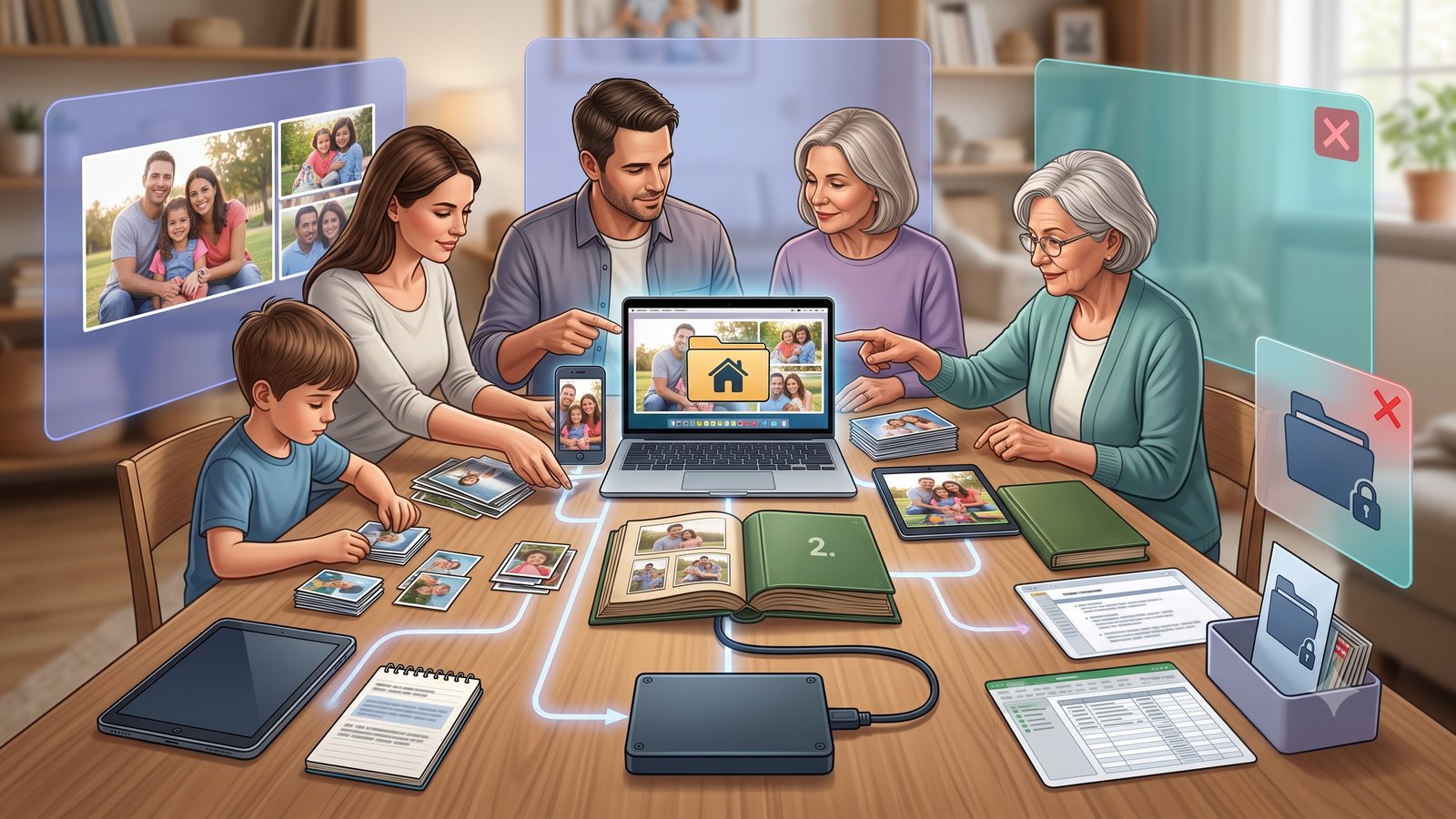
Third, create the shared destination. This could be a shared Dropbox or OneDrive folder if you want the easiest hosted path, or a shared S3 or Cloudflare R2 bucket if you want a neutral long-term archive.
Fourth, connect the sources that matter. Use the local connector for external drives, NAS folders, iCloud Drive, and Google Drive for desktop. Use hosted web connections for Dropbox, OneDrive, S3, or R2.
Once that structure exists, you can clean up duplicates, move obvious family photos into the sink, and leave everyone’s private libraries intact.
FAQ
What is the best way to organize family photos across iPhone and Android?
The best way is to keep each person’s private photo library separate and create one shared family photo sink for the pictures everyone should see. This avoids forcing the household into one Apple account, one Google account, or one shared login.
Should a family use one shared Apple or Google account for photos?
Usually, no. One shared account may feel convenient, but it mixes identities, creates privacy problems, and turns the whole family archive into one login and one failure point. A shared archive should be separate from personal accounts.
What is a family photo sink?
A family photo sink is a central shared destination for family photos and videos. It can be a shared folder, NAS folder, cloud folder, or object storage bucket. The key idea is that shared photos go into the sink, while personal libraries stay private by default.
Can iPhone and Android photos be organized together?
Yes. The cleanest pattern is not to force both platforms into one ecosystem. Instead, let iPhone and Android users keep their own libraries, then contribute selected photos to one shared family archive.
How does Whimsy help with family photo organization?
Whimsy helps by creating a local-first organization layer across the storage you already use. It can connect local folders, external drives, NAS, synced desktop folders, and supported hosted storage so families can search and organize photos without merging everyone’s private accounts.
Does a shared family photo archive replace backups?
No. A shared family archive is for organization and access. You still need a backup plan with another copy on different storage and an off-site copy that does not simply mirror accidental deletions.
The takeaway
The best family photo system does not merge everyone into one account. It keeps personal libraries private, creates one shared family photo sink, and separates that shared archive from real backups.
For mixed iPhone and Android households, Whimsy’s local-first approach makes that structure easier: iCloud Drive and Google Drive for desktop can come through the connector machine you control, while Dropbox, OneDrive, S3, and Cloudflare R2 can use hosted web connections where appropriate.
The result is one family archive without one family takeover.
Comments (0)
The views in comments are those of the author and do not necessarily reflect the views of NumeraCode. We reserve the right to remove inappropriate content.