Self-hosted family cloud drive: which option actually works?
Uwe Maier
Engineering
Rahul Shoy
Founder

You can buy the disks. You can set up the server. The hard part is getting the rest of the family to use it without making you the permanent help desk.
Assume you are managing 5 TB of extra storage to archive old documents, photos, and videos. They pile up slowly until the mess feels normal. At one point, this writer had 15 TB spread across cloud drives, 11 TB of which was duplicate data. After a long cleanup, that became 4 TB. That story belongs in a deduplication post, but the lesson is simple: family storage gets messy fast.
The interesting part of collecting data over years is how quickly hardware becomes obsolete. Old phones, old hard drives, old laptops, and old servers all leave behind fragments of the family archive. You need a way to know what is already safely backed up, what still needs to be saved, and what can finally be deleted when a device reaches the end of its life.

So you decide to buy a NAS, use an old server PC, or rent an S3-compatible storage bucket. You own the storage, but everyone in the family still needs access. They need to upload, move, delete, archive, and recover their own files. What normally happens? You spend a full weekend coordinating with everyone, playing IT support, and still missing important files.

The Google trap
This is where Google Drive helps. It offers large storage plans, a polished user experience, and family sharing that handles the exact chaos above. It works because Google has already done the integration work: apps, accounts, uploads, sharing, previews, and recovery all feel normal to non-technical people.
The problem is control. You are at the mercy of a company whose product decisions can change the rules later. Google Photos can drift away from Drive. Automated systems can flag accounts. A lifetime of memories can become a migration project you did not ask for. That is why people talk about de-Googling: not because convenience is bad, but because convenience becomes fragile when someone else owns the keys.

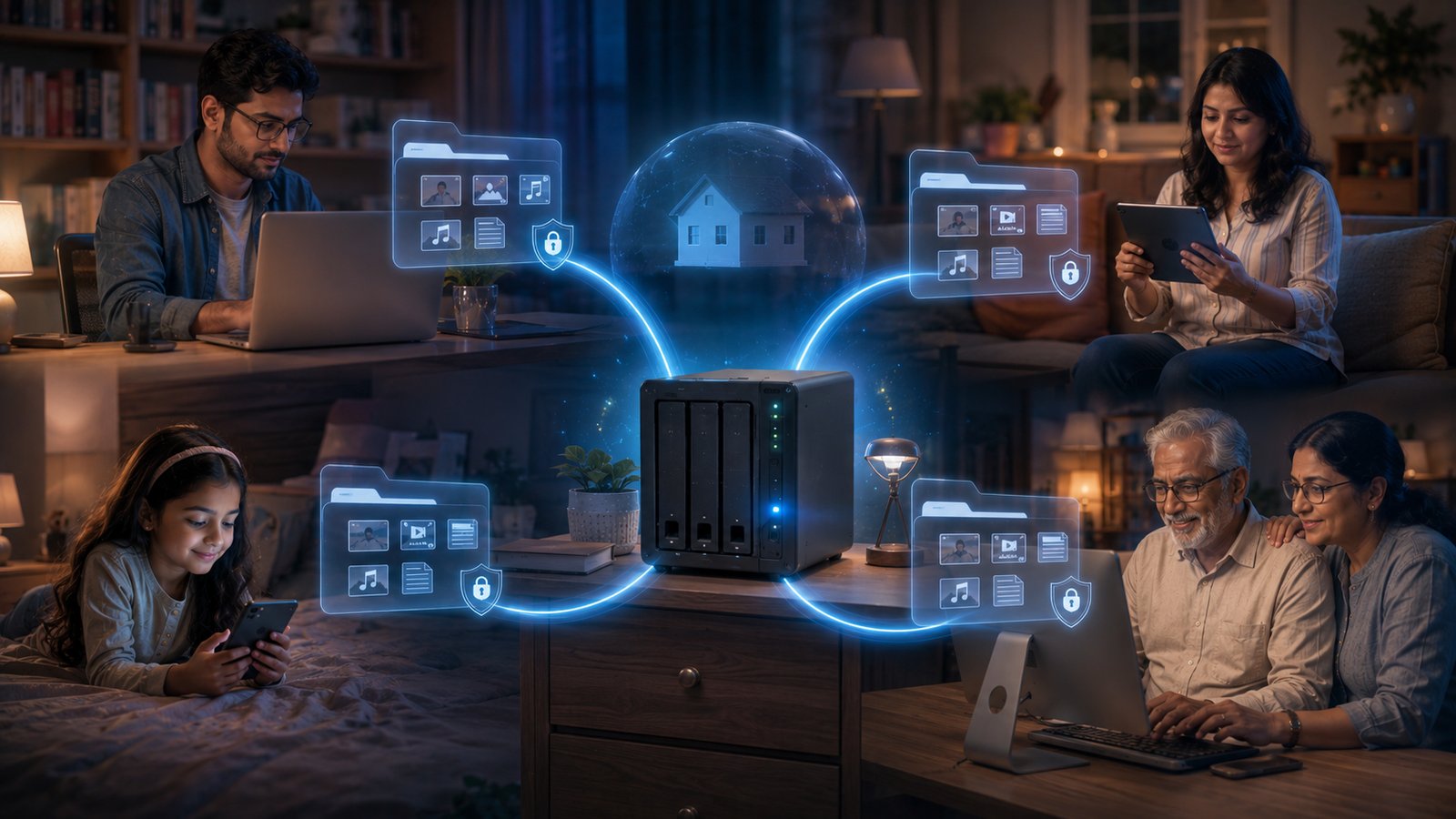
The goal is straightforward: one person runs a server at home, and the whole family gets Google Drive-style remote access. That means drag-and-drop uploads, iOS, Android, PC, and Mac support, private user accounts, and a clean view for each person. Not a public file bin. Not a single shared login. A real family cloud where the server lives in your house and the family never has to think about the underlying technology.
Nextcloud: the full platform that will not finish installing
Nextcloud is the most feature-complete self-hosted cloud option, but it is rarely the right fit for a non-technical family setup. On a fresh home server, the installation phase is where many people give up. The easy Docker image still expects you to understand port mapping, volume mounts, environment variables, and what to do when a container fails to start.
Even when it runs, the family experience can be rough. Large uploads stall. Mobile apps need to stay compatible with the server. The interface carries the weight of a broad enterprise collaboration suite your relatives will never open. You wanted a shared drive. You got software that wants a part-time sysadmin.

Seafile: faster sync, but Docker is still the toll booth
Seafile is a faster, lighter alternative to Nextcloud with a genuinely efficient sync engine. It chunks files client-side and moves only what changed, making it one of the stronger open-source performers for large photo and document libraries.
The barrier is still setup. Installation runs through Docker or a manual Linux server flow, and each family member still needs to understand a custom server URL and login. For a technical owner, that can be a fun weekend project. For a relative who only wants to drop a file into a folder on their phone, it is a support call waiting to happen.
File Browser: simple and multi-user, but not a full family cloud
File Browser is the lightest multi-user option here: a single binary that serves a directory through a clean web UI. It clears the multi-user bar that a bare Samba share does not, which is why the self-hosting community recommends it so often.
What it does not provide is the part families usually expect from a cloud drive: a desktop sync client, resilient mobile uploads, and a native backup strategy. File Browser serves what is currently on disk. If that disk fails, the family files go with it unless you built a separate backup plan. For occasional web access to one folder, it is the lightest thing that works. For a true family cloud, it falls short.
rclone: the right engine, no interface your family can use
rclone is a powerful command-line utility for syncing files between local storage and cloud providers. Retries, checksums, bandwidth throttling, and broad provider support are all native features. It is a masterpiece as an engine.
As something your mother opens on her phone, it is basically nonexistent. You can build a family cloud on top of rclone, but rclone alone is not the product. It is the engine, not the car.
Synology: the working answer that costs money
A Synology NAS, especially the streamlined BeeStation line, is the closest out-of-the-box equivalent to Google Drive for a home server. You buy the hardware, create accounts, and Synology Drive gives the family a synced folder on phones and laptops. No Docker, no config files, and no reverse proxy required.
The tradeoffs are real. A NAS costs several hundred dollars before hard drives. The software is proprietary and tied to Synology hardware. If the hardware fails, recovering the full family setup can be harder than recovering the files. Synology works because a large engineering team completed the integration work for you, and you pay for that convenience upfront.
The real problem: integration is the product
The engines behind self-hosted file sharing are mature, powerful, and often free. Nextcloud has a broad feature set. Seafile has a serious sync engine. rclone is battle-tested plumbing. What is missing is the integration layer between those backend engines and a non-technical person holding a phone.
A true integration layer includes an installer that relatives do not configure, uploads that survive a dropped mobile connection, a desktop folder that mirrors automatically, and per-user accounts an owner can invite or revoke without editing YAML files. That layer is exactly what Google Drive, iCloud, and Synology sell. It is also the piece open-source self-hosting tools often hand back to you as a weekend project.

Where Whimsy fits
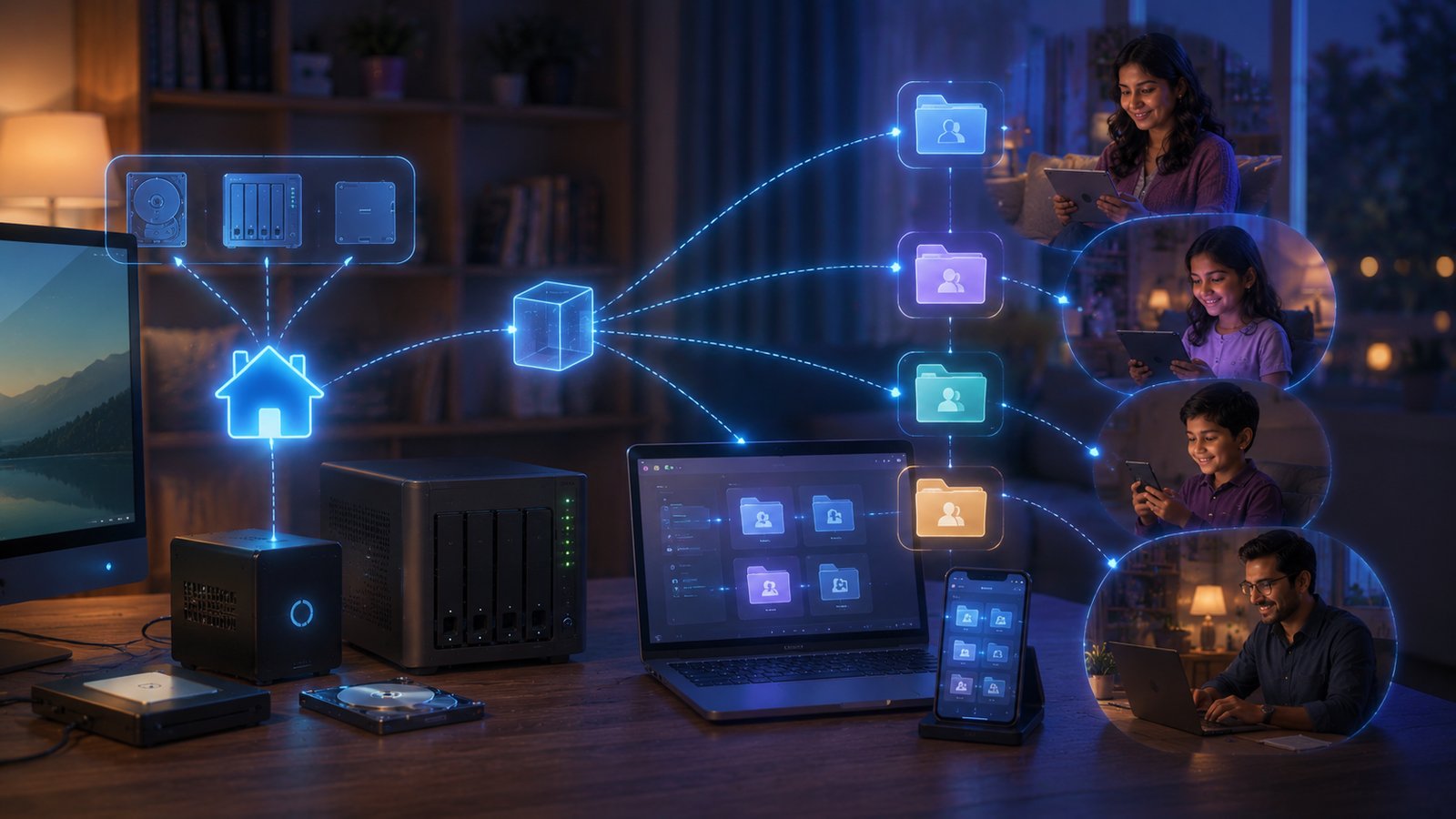
Whimsy fits as a family-friendly layer on top of storage you already control. Instead of asking you to run Docker, publish ports, or set up a VPN, Whimsy uses a lightweight local connector. Install it on the home PC or storage machine where your files already live, pair it once with the Whimsy web app, and manage access from one dashboard.
For family members, the experience feels closer to a normal cloud drive. They sign in and see what they have access to. For the owner, files stay on existing hardware while permissions, syncing, and sharing move into one interface. That is the difference between a raw tool and a usable family product.
What to actually do
If you are setting this up today, the shortest path is honest:
- Stop forcing Nextcloud if you only wanted a shared drive. Docker being hard is not a personal flaw.
- Buy Synology if you want plug-and-play hardware and are comfortable paying the premium.
- Run File Browser if your family only needs a lightweight web folder without background sync.
- Try Whimsy if you want files to stay on existing hardware with a family-friendly interface and no firewall project.
Frequently asked questions
Can I set up a family cloud drive without Docker?
Yes. File Browser runs as a simple single binary with no containerization required. Whimsy uses a lightweight desktop connector app that installs like a normal program. Both are good options for home users who want to avoid Docker entirely.
What is the cheapest self-hosted family cloud option?
File Browser is free and runs on almost any legacy hardware. It provides multi-user accounts and a web interface, though it lacks robust background sync and backup features. If your family only needs occasional file access, it is the lowest-cost path.
Is self-hosted cloud storage private?
It depends on the architecture. Tools like File Browser and Seafile can keep files on your own machine, but you still need to think about encryption, backups, remote access, and account security. Whimsy is designed around keeping storage under your control and reducing how much infrastructure your family has to trust or understand.
Do family members need technical knowledge?
Most open-source options require technical configuration from the owner and sometimes from each end user: server URLs, custom ports, VPNs, or app-specific setup. Synology and Whimsy hide more of that. Family members should only need to install an app, sign in, and use the folders they are allowed to see.
Try the private family cloud path
If the goal is to keep family files on hardware you control without turning yourself into the family sysadmin, the product is not the sync engine. The product is the integration layer. Try Whimsy if you want the convenience of a cloud drive without handing the whole archive to another closed ecosystem.
Comments (0)
The views in comments are those of the author and do not necessarily reflect the views of NumeraCode. We reserve the right to remove inappropriate content.